Video Consultations
Joining your video call
You booked a video consultation with Jonathan Spurling. Here's exactly what you'll see, screen by screen, from your confirmation email to the moment you're in the call — no software to install, no account required.
Your Digital Tech Fusion consultation is confirmed
- Appointment
- The date and time you booked
- Type
- Video Meeting
- Video link
- cloud.digitaltechfusion.ca/call/…
Click the video link in your email
At the time of your appointment (or a few minutes before), open the confirmation email and click the video link. It opens in your web browser — nothing to download. You'll land here first:
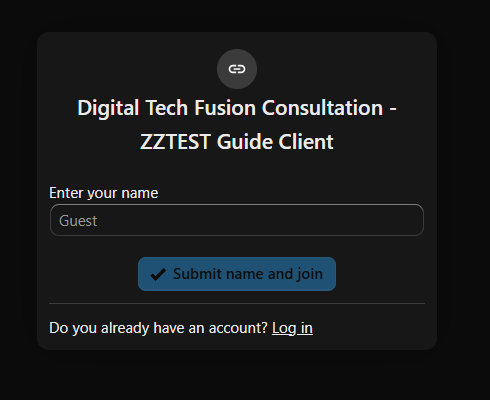
Enter your name and join
Type your name so Jonathan knows who's joined, then click Submit name and join. You'll land in the appointment's conversation screen with a blue Start call button at the top — that's what you'll click when you're ready to begin.
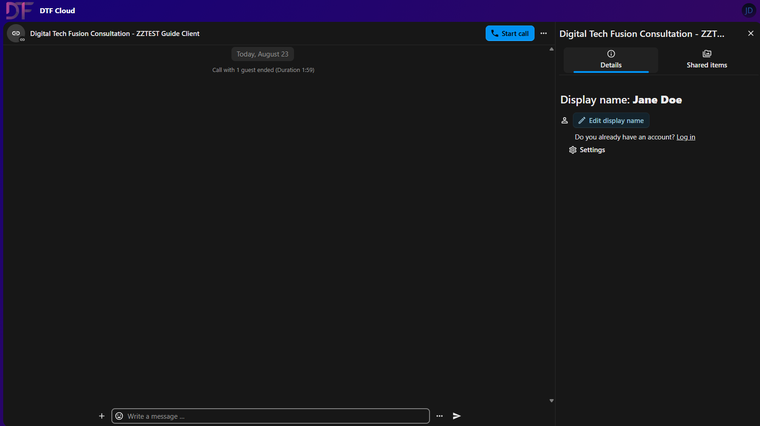
Allow your microphone and camera
Right after you click Start call, your browser will ask permission for your microphone, then separately for your camera. Choose Allow while visiting the site (or "Allow this time") for each.
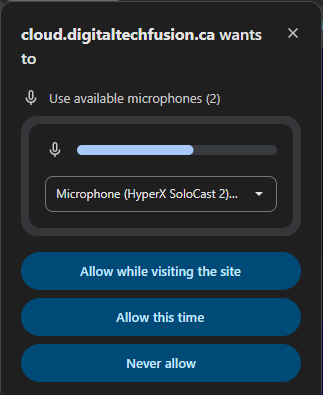
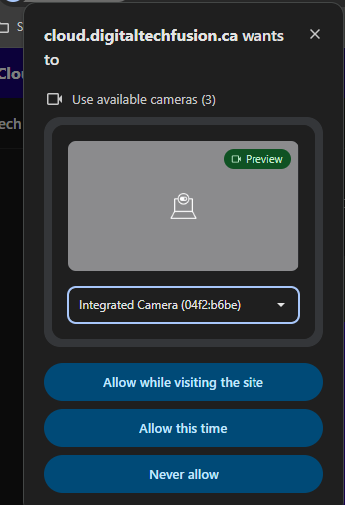
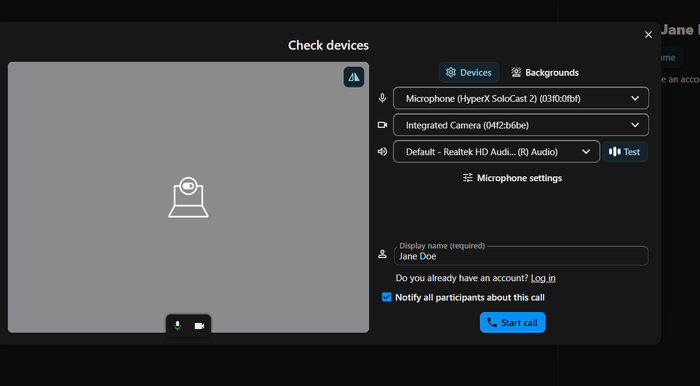
Check your devices, then start the call
A "Check devices" screen shows your camera preview and lets you pick which microphone, camera, and speaker to use. Your name is already filled in — just confirm it's correct and click Start call.
You're in
You'll land in the call itself. If you arrived early, it will say Waiting for others to join until Jonathan connects — that's normal, just stay on the page. A control bar at the bottom lets you mute yourself, turn your camera on or off, or leave when you're done.
If something doesn't look right
- My browser is asking to "access other devices on your local network"
- This is safe to Allow or Block either way — it's your browser's own casting feature checking for nearby devices, not something the call itself needs. It has no effect on your camera, microphone, or the call connecting.
- My browser says it isn't fully supported
- Use the latest version of Chrome, Firefox, Edge, or Safari. The call itself will still work in most other browsers — that message is just a heads-up.
- My camera or microphone isn't working
- Check that your browser has permission to use them (look for a camera icon in the address bar) and that no other app has your camera open. You can also join with your camera and mic off and turn them on once you're in.
- I'm having trouble and my appointment is starting
- Email jon@digitaltechfusion.ca right away and Jonathan will send you an alternate Zoom link.
- I need to reschedule or cancel
- Use the Reschedule or Cancel link at the bottom of your confirmation email — we appreciate as much notice as possible, ideally 48 hours.